Showing posts with label mobile. Show all posts

Saturday, 6 April 2024

How to recover deleted files from a smartphone?

How to Recover Deleted Files from a Smartphone: A Clear Guide

With the increasing reliance on smartphones for storing important data, the possibility of accidentally deleting files has become a common occurrence. Losing important files such as contacts, photos, and documents can be frustrating and stressful, especially if they were not backed up. Fortunately, there are ways to recover deleted files from a smartphone.

Understanding File Deletion is the first step in recovering deleted files from a smartphone. When a file is deleted from a smartphone, it is not immediately removed from the device's storage. Instead, the file is marked as "deleted" and its space is made available for new data. This means that the deleted file can still be recovered as long as it has not been overwritten by new data.

Pre-Recovery Steps are crucial in increasing the chances of successful file recovery. It is important to stop using the smartphone immediately after realizing that a file has been deleted. This prevents new data from overwriting the deleted file, increasing the chances of successful recovery. Additionally, it is recommended to turn off Wi-Fi and mobile data to prevent automatic backups that may overwrite the deleted file.

Key Takeaways

  • Understanding File Deletion is crucial in recovering deleted files from a smartphone.
  • Pre-Recovery Steps such as stopping use of the smartphone and turning off Wi-Fi and mobile data increase the chances of successful file recovery.
  • Recovery Tools and Software, Direct Recovery on the Smartphone, and Professional Data Recovery Services are options for recovering deleted files from a smartphone.

Understanding File Deletion

The Basics of Data Storage

Before delving into how to recover deleted files from a smartphone, it is important to understand the basics of data storage. In simple terms, data storage refers to the process of saving digital information on a device's memory. This can include photos, videos, documents, and other types of files.

Smartphones typically come with two types of storage: internal and external. Internal storage refers to the phone's built-in memory, while external storage refers to a removable memory card. Both types of storage use a file system to organize and manage the data stored on them.

How Deletion Works on Smartphones

When a file is deleted from a smartphone, it is not immediately removed from the device's memory. Instead, the file's location is marked as available for new data to overwrite it. This means that until new data is saved in that location, the deleted file can potentially be recovered.

It is important to note that not all deleted files can be recovered. If a file has been overwritten by new data, it is unlikely that it can be retrieved. Additionally, if the file was deleted from external storage and the memory card has been removed or damaged, recovery may not be possible.

In summary, understanding how file deletion works on smartphones and the basics of data storage is crucial for successful file recovery.

Pre-Recovery Steps

Before attempting to recover deleted files from a smartphone, there are a few steps that should be taken to increase the chances of success. These pre-recovery steps can help prevent further data loss and ensure that the deleted files are recoverable.

Stop Using the Device

The first and most important step is to stop using the device as soon as possible. Continuing to use the device after files have been deleted can overwrite the space where the deleted files were stored, making them unrecoverable. Therefore, it is recommended to turn off the device and avoid using it until the recovery process is complete.

Enable Airplane Mode

Enabling airplane mode can help prevent the device from automatically syncing or backing up data, which could potentially overwrite the deleted files. This can be done by going to the device's settings and toggling on airplane mode.

Check Cloud Services

If the device was connected to a cloud service such as Google Drive or iCloud, it is recommended to check if the deleted files were backed up to the cloud. This can be done by logging into the cloud service account and checking the backup history.

Assess the Situation

Before attempting to recover deleted files, it is important to assess the situation and determine what type of data was lost. This can help determine which recovery method to use and increase the chances of successful recovery. It is recommended to make a list of the deleted files and their file types, as well as any other relevant information such as when they were deleted and how they were stored.

By following these pre-recovery steps, users can increase the chances of successful file recovery and prevent further data loss.

Recovery Tools and Software

Choosing the Right Tool

When it comes to recovering deleted files from a smartphone, choosing the right tool is crucial. There are many recovery tools and software available in the market, but not all of them are reliable. Some may even cause further damage to your device or compromise your data security.

Before selecting a tool, consider the following factors:

  • Compatibility: Check if the tool is compatible with your smartphone's operating system.
  • User-Friendliness: Choose a tool that is easy to use and does not require technical expertise.
  • Features: Look for a tool that offers a wide range of recovery options and supports various file formats.
  • Reviews: Read reviews from other users to ensure the tool is reliable and effective.

Software for Android Recovery

For Android smartphones, there are several recovery software options available. Some of the popular ones include:

  • Dr. Fone: This software is compatible with most Android devices and can recover various file types, including photos, videos, and documents. It also offers a preview feature to help users select the files they want to recover.
  • EaseUS MobiSaver: This software can recover deleted files from both internal and external storage. It also offers a free trial version for users to test before purchasing.
  • DiskDigger: This software is free and can recover deleted files from both internal and external storage. It supports various file formats, including photos, videos, and documents.

Software for iOS Recovery

For iOS devices, recovery software options are limited due to Apple's strict security measures. However, there are still some reliable options available, including:

  • EaseUS MobiSaver: This software can recover deleted files from iOS devices, including iPhones and iPads. It offers a user-friendly interface and supports various file formats.
  • Dr. Fone: This software can recover deleted files from iOS devices, including photos, messages, and contacts. It also offers a preview feature to help users select the files they want to recover.
  • PhoneRescue: This software can recover various file types, including photos, messages, and contacts. It also offers a feature to repair damaged iOS systems.

Remember, it's important to act quickly when you realize you've deleted a file. The longer you wait, the more likely it is that the file will be overwritten and unrecoverable. With the right tool and software, you can increase your chances of recovering your deleted files successfully.

Using Your Computer to Recover Files

Connecting Your Smartphone

To recover deleted files from a smartphone using a computer, the first step is to connect the smartphone to the computer. This can be done using a USB cable that comes with the smartphone or a compatible cable.

Once the smartphone is connected, it should appear as a removable storage device on the computer. If the smartphone is not recognized by the computer, it may be necessary to install the appropriate drivers.

Data Recovery via Computer

After connecting the smartphone to the computer, the next step is to use data recovery software to recover the deleted files. There are many data recovery software available online, such as EaseUS Data Recovery Wizard, Recuva, and Disk Drill.

To recover deleted files using data recovery software, follow these steps:

  1. Download and install the data recovery software on the computer.
  2. Launch the software and select the smartphone as the target device.
  3. Choose the file types that need to be recovered and start the scanning process.
  4. Once the scanning process is complete, preview the recovered files and select the files that need to be restored.
  5. Save the recovered files to a different location on the computer to avoid overwriting the original files.

It is important to note that the success of data recovery depends on several factors, such as the amount of time that has passed since the files were deleted and the level of activity on the smartphone after the files were deleted. Therefore, it is recommended to attempt data recovery as soon as possible after the files are deleted.

Direct Recovery on the Smartphone

If you have accidentally deleted a file from your smartphone, there is a chance that you can recover it directly on the device. Here are some options for recovering deleted files on your smartphone.

Built-In Recovery Features

Many smartphones come with built-in recovery features that can help you retrieve deleted files. For example, Android devices have a feature called "Trash" or "Recycle Bin" that stores deleted files for a certain period of time before permanently deleting them. You can access this feature by going to your device's file manager and looking for a folder called "Trash" or "Recycle Bin."

Similarly, iOS devices have a feature called "Recently Deleted" that stores deleted photos and videos for up to 30 days. You can access this feature by opening the Photos app and tapping on the "Albums" tab. Look for an album called "Recently Deleted" and check if your deleted files are there.

Third-Party Apps for On-Device Recovery

If your device does not have built-in recovery features or if the files you want to recover are not in the Trash or Recently Deleted folders, you can try using third-party apps for on-device recovery. These apps scan your device's storage for deleted files and try to recover them.

One popular app for Android devices is DiskDigger, which can recover deleted photos, videos, and other files. Another option is EaseUS MobiSaver, which can recover deleted files on both Android and iOS devices.

For iOS devices, you can also try using Tenorshare UltData, which can recover deleted photos, messages, contacts, and more. Another option is Dr. Fone, which can recover deleted files on both Android and iOS devices.

Keep in mind that the success of on-device recovery depends on several factors, such as how long ago the file was deleted and whether the device's storage has been overwritten with new data. It is always a good idea to back up your important files regularly to avoid losing them permanently.

Professional Data Recovery Services

When to Seek Professional Help

Sometimes, using data recovery software is not enough to recover deleted files from a smartphone. In such cases, it is recommended to seek professional help from a data recovery service.

If the smartphone has physical damage, such as a cracked screen or water damage, it is best to take it to a professional data recovery service. Attempting to recover data from a physically damaged smartphone can cause further damage and may result in permanent data loss.

Another situation where professional help is necessary is when the deleted files are critical and time-sensitive. Professional data recovery services have the expertise and equipment to recover data quickly and efficiently.

What to Expect from a Service

When seeking professional data recovery services, it is essential to choose a reputable and trustworthy service provider. The service provider should have a proven track record of successfully recovering data from smartphones.

The data recovery service will first perform a diagnostic assessment of the smartphone to determine the extent of the damage and the recoverability of the deleted files. They will then provide a quote for the recovery service.

Once the quote is accepted, the data recovery service will use specialised equipment and software to recover the deleted files. The recovered data will be provided to the customer in a secure and encrypted format.

It is important to note that professional data recovery services can be expensive, and the cost may vary depending on the extent of the damage and the complexity of the recovery process. However, the peace of mind that comes with recovering critical data may be worth the cost.

Preventing Future Data Loss

Regular Backups

One of the best ways to prevent future data loss is to regularly back up important files on your smartphone. This can be done by connecting your phone to a computer and transferring files to an external hard drive or USB stick. Alternatively, you can use cloud storage services such as Google Drive or Dropbox to automatically back up your files to the cloud.

It is important to set up automatic backups to ensure that you don't forget to do it manually. This will help you to recover any lost data quickly and easily in the event of a mishap.

Using Cloud Services Wisely

While cloud storage services are a great way to back up your files, it is important to use them wisely. Make sure that you choose a reputable provider with a good track record of security and reliability.

Additionally, be careful about what you upload to the cloud. Avoid storing sensitive or confidential information, and be aware that anything you upload could potentially be accessed by hackers or other third parties.

Protecting Against Data Corruption

Data corruption can occur when files become damaged or unreadable due to a software or hardware issue. To protect against data corruption, it is important to keep your smartphone's software up to date and to avoid installing untrusted apps or software.

Regularly scanning your phone for viruses and malware can also help to prevent data corruption. Finally, make sure that you have a reliable antivirus program installed on your phone to protect against any potential threats.

By following these tips, you can help to prevent future data loss and ensure that your important files are always safe and secure.

Frequently Asked Questions

What methods exist to restore permanently deleted files on Android?

Several methods exist to restore permanently deleted files on Android. One of the most common methods is to use a data recovery app. Another method is to connect your smartphone to a computer and use recovery software to scan the device's memory for deleted files.

Can I retrieve deleted files from my smartphone's internal storage without using a computer?

Yes, it is possible to retrieve deleted files from your smartphone's internal storage without using a computer. You can use a data recovery app to scan your device's memory for deleted files and recover them.

Is it possible to recover lost data from a mobile device without any prior backup?

Yes, it is possible to recover lost data from a mobile device without any prior backup. However, the chances of successful recovery are higher if you have a backup of your data.

Which apps are recommended for restoring deleted files on an Android device?

There are several data recovery apps available for Android devices. Some of the most recommended apps include DiskDigger, EaseUS MobiSaver, and Dr. Fone.

How do I recover deleted data from my smartphone's internal memory for free?

You can recover deleted data from your smartphone's internal memory for free by using a free data recovery app. Some of the most popular free data recovery apps for Android include DiskDigger, Recuva, and MiniTool Mobile Recovery.

What steps should I take to locate erased files on my Android handset?

To locate erased files on your Android handset, you can use a data recovery app to scan your device's memory for deleted files. You can also check your device's recycle bin or trash folder to see if the files are still there. Additionally, you can try using a file manager app to search for the deleted files.

IF YOU LIKED THE POST , DON'T FORGET TO SHARE AND COMMENT BELOW

Saturday, 23 March 2024

How to transfer data from old phone to new phone?

How to Transfer Data from Old Phone to New Phone: A Comprehensive Guide

Transferring data from an old phone to a new one can be a daunting task, especially if you're not tech-savvy. However, it's a necessary process if you want to keep all your contacts, messages, photos, and other important files. Fortunately, there are several ways to transfer data from your old phone to your new one, and it's not as complicated as you might think.

One of the easiest ways to transfer data is to use the cloud. Most smartphones come with a cloud service, such as iCloud for Apple devices or Google Drive for Android devices. You can back up your old phone's data to the cloud and then restore it on your new phone. This method is convenient because you don't need any cables or special software, and you can access your data from anywhere with an internet connection. However, you may need to pay for additional cloud storage if you have a lot of data to transfer.

Preparing Your Devices

Before transferring data from your old phone to your new phone, it is important to prepare both devices. Here are some key steps to follow:

How to transfer data from old phone to new phone


1. Charge Your Phones

Make sure both your old and new phones are fully charged before starting the transfer process. This will ensure that the phones do not run out of battery during the transfer, which could cause data loss or corruption.

2. Update Your Phones

Check for any software updates on both your old and new phones. Updating your phones to the latest software version can help ensure a smoother transfer process and reduce the risk of compatibility issues.

3. Back Up Your Old Phone

Before transferring data, it is recommended to back up your old phone. This can be done using cloud services, such as Google Drive or iCloud, or by connecting your phone to a computer and transferring the data manually.

4. Clear Out Unwanted Data

To make the transfer process quicker and more efficient, it is a good idea to clear out any unwanted data from your old phone. This can include old photos, videos, and apps that you no longer use.

By following these steps to prepare your devices, you can ensure a smooth and stress-free transfer process.

Using Manufacturer Transfer Tools

When transferring data from an old phone to a new phone, using the manufacturer's transfer tools can be a quick and easy solution. These tools are designed to make the transfer process seamless, and they are often pre-installed on the device. Here are some popular transfer tools from different manufacturers:

Samsung Smart Switch

Samsung Smart Switch is a transfer tool that is available for Samsung devices. It allows users to transfer data from an old Samsung phone to a new one. This tool can transfer contacts, messages, photos, music, and more. To use Samsung Smart Switch, follow these steps:

  1. Download and install Samsung Smart Switch on both devices.
  2. Connect the devices using a USB cable or Wi-Fi.
  3. Choose the data you want to transfer.
  4. Click "Transfer" and wait for the process to complete.

Apple Quick Start

Apple Quick Start is a transfer tool that is available for iPhones and iPads. It allows users to transfer data from an old iOS device to a new one. This tool can transfer contacts, messages, photos, and more. To use Apple Quick Start, follow these steps:

  1. Turn on the new device and place it next to the old device.
  2. Follow the on-screen instructions on the new device.
  3. Use the camera on the new device to scan the animation on the old device.
  4. Enter the old device's passcode on the new device.
  5. Set up Face ID or Touch ID on the new device.
  6. Choose the data you want to transfer.
  7. Wait for the process to complete.

Google Drive Backup and Restore

Google Drive Backup and Restore is a transfer tool that is available for Android devices. It allows users to back up data from an old Android device to Google Drive and then restore it on a new device. This tool can transfer contacts, messages, photos, and more. To use Google Drive Backup and Restore, follow these steps:

  1. Go to "Settings" on the old device.
  2. Tap "System" > "Backup" > "Backup to Google Drive".
  3. Choose the data you want to back up.
  4. Wait for the backup to complete.
  5. Turn on the new device and sign in to your Google account.
  6. Follow the on-screen instructions to restore the data from the backup.

Transferring Data via Cloud Services

Cloud services are a convenient and easy way to transfer data from an old phone to a new phone. They allow users to store their data on a remote server and access it from any device with an internet connection. Here are some popular cloud services that can be used to transfer data:

Dropbox

Dropbox is a cloud storage service that allows users to store and share files online. It offers a free plan with 2GB of storage and paid plans with more storage options. To transfer data from an old phone to a new phone using Dropbox, follow these steps:

  1. Install Dropbox on both phones.
  2. Upload the data you want to transfer from the old phone to Dropbox.
  3. On the new phone, download the data from Dropbox.

Microsoft OneDrive

Microsoft OneDrive is another cloud storage service that offers similar features to Dropbox. It offers a free plan with 5GB of storage and paid plans with more storage options. To transfer data from an old phone to a new phone using OneDrive, follow these steps:

  1. Install OneDrive on both phones.
  2. Upload the data you want to transfer from the old phone to OneDrive.
  3. On the new phone, download the data from OneDrive.

iCloud

iCloud is a cloud storage service offered by Apple that is built into all Apple devices. It offers a free plan with 5GB of storage and paid plans with more storage options. To transfer data from an old iPhone to a new iPhone using iCloud, follow these steps:

  1. Backup the old iPhone to iCloud.
  2. On the new iPhone, select "Restore from iCloud Backup" during the setup process.
  3. Select the backup you created on the old iPhone to transfer the data to the new iPhone.

Cloud services are a great way to transfer data from an old phone to a new phone. They offer a convenient and secure way to store and access data from any device with an internet connection. By following the steps outlined above, users can easily transfer their data to their new phone.

Physical Transfer Methods

USB Cable Transfer

One of the most common ways to transfer data from an old phone to a new one is by using a USB cable. This method allows you to connect the two devices directly and transfer files quickly and easily.

To use this method, you will need a USB cable that is compatible with both your old and new phone. Once you have the cable, simply connect one end to your old phone and the other end to your new phone.

You should then be prompted to select the type of transfer you want to perform. Depending on your phone's operating system, you may be given the option to transfer contacts, photos, videos, and other files.

SD Card Copy

Another physical transfer method is to use an SD card to copy your data from your old phone to your new phone. This method is particularly useful if your old phone has an SD card slot and you have a spare SD card lying around.

To use this method, simply insert the SD card into your old phone and transfer your data onto it. Once you have done this, remove the SD card from your old phone and insert it into your new phone.

You should then be able to access your data on your new phone and transfer it onto your new device. However, it's worth noting that not all phones have SD card slots, so this method may not be suitable for everyone.

Third-Party Apps for Data Transfer

When it comes to transferring data from an old phone to a new one, there are a variety of third-party apps available that can make the process quick and easy. Here are two popular options:

SHAREit

SHAREit is a free app that allows users to transfer files between devices quickly and easily. It is available for both Android and iOS devices. To use SHAREit, simply download the app on both your old and new phones, and follow the prompts to connect the devices. Once connected, you can transfer photos, videos, music, and other types of files between the two phones.

One of the benefits of using SHAREit is that it is fast and easy to use. The app uses Wi-Fi Direct technology to transfer files between devices, which means you don't need an internet connection to use it. Additionally, SHAREit is secure and reliable, so you can be confident that your data is safe during the transfer process.

Phone Clone

Phone Clone is another popular app for transferring data between phones. It is available for both Android and iOS devices, and is free to download. To use Phone Clone, simply download the app on both your old and new phones, and follow the prompts to connect the devices. Once connected, you can transfer contacts, messages, photos, videos, and other types of data between the two phones.

One of the benefits of using Phone Clone is that it is designed specifically for transferring data between phones. The app is easy to use, and guides you through the process step-by-step. Additionally, Phone Clone is fast and reliable, so you can be confident that your data will be transferred quickly and safely.

Overall, third-party apps like SHAREit and Phone Clone can make transferring data between phones quick and easy. Whether you're upgrading to a new phone or simply need to transfer data between devices, these apps are a great option to consider.

Manual Data Transfer

Transferring data from an old phone to a new one manually can be done in a few simple steps. This method requires a bit more effort than using cloud services or apps, but it ensures that your data is not stored on third-party servers. Here are the steps:

Contacts and Calendars

To transfer contacts and calendars, the user can export them from the old phone and import them into the new one. The exact process may vary depending on the phone's operating system, but the steps are generally as follows:

  1. Export the contacts and calendars from the old phone to a file, such as a vCard or CSV.
  2. Transfer the file to the new phone via email, Bluetooth, or USB.
  3. Import the file into the contacts and calendar apps on the new phone.

Photos and Videos

Transferring photos and videos manually can be done by connecting both phones to a computer and copying the files over. Alternatively, the user can use a microSD card or USB drive to transfer the files directly between the phones. Here are the steps:

  1. Connect both phones to a computer via USB.
  2. Copy the photos and videos from the old phone to the computer.
  3. Disconnect the old phone and connect the new phone.
  4. Copy the photos and videos from the computer to the new phone.

Music and Audio Files

To transfer music and audio files, the user can connect both phones to a computer and copy the files over. Alternatively, the user can use a microSD card or USB drive to transfer the files directly between the phones. Here are the steps:

  1. Connect both phones to a computer via USB.
  2. Copy the music and audio files from the old phone to the computer.
  3. Disconnect the old phone and connect the new phone.
  4. Copy the music and audio files from the computer to the new phone.

Documents and Files

Transferring documents and files manually can be done by connecting both phones to a computer and copying the files over. Alternatively, the user can use a microSD card or USB drive to transfer the files directly between the phones. Here are the steps:

  1. Connect both phones to a computer via USB.
  2. Copy the documents and files from the old phone to the computer.
  3. Disconnect the old phone and connect the new phone.
  4. Copy the documents and files from the computer to the new phone.

By following these steps, the user can manually transfer their data from an old phone to a new one without relying on cloud services or apps. It may take a bit more effort, but it ensures that the data remains private and secure.

Troubleshooting Common Issues

When transferring data from an old phone to a new phone, there can be a few common issues that may arise. Here are some troubleshooting tips to help you avoid or resolve these issues:

1. Insufficient Storage Space

One common issue that may occur when transferring data is insufficient storage space on the new phone. If this happens, you may need to delete some unnecessary files or apps to free up space.

2. Incompatible Operating Systems

If you are transferring data between phones with different operating systems, such as from an Android phone to an iPhone, you may encounter compatibility issues. In this case, you may need to use a third-party app or cloud service to transfer the data.

3. Data Corruption

If the data transfer process is interrupted or there is a problem with the connection, data corruption may occur. To avoid this, ensure that both phones are fully charged and have a stable connection before starting the transfer process.

4. Incorrect Passwords

When transferring data from apps that require passwords, such as social media apps or email accounts, make sure that you enter the correct passwords. Incorrect passwords may cause the transfer to fail or result in incomplete data transfer.

By following these troubleshooting tips, you can ensure a smooth and successful transfer of data from your old phone to your new phone.

Frequently Asked Questions

What is the most efficient method for transferring data between two Android devices?

The most efficient method for transferring data between two Android devices is to use a data transfer app. There are many apps available on the Google Play Store that can help with this process. Some of the most popular ones include Google Drive, Samsung Smart Switch, and SHAREit. These apps allow you to transfer photos, videos, contacts, messages, and other data between devices quickly and easily.

Can I transfer my data to a new iPhone from an Android device without using Wi-Fi?

Yes, you can transfer your data to a new iPhone from an Android device without using Wi-Fi. One way to do this is to use a data transfer app that is compatible with both Android and iOS devices. Some popular options include AnyTrans, PhoneTrans, and CopyTrans. Another option is to use a computer to transfer your data. You can connect your Android device to your computer using a USB cable and then transfer your data to your iPhone using iTunes.

What steps are involved in setting up a new device using data from an old phone?

To set up a new device using data from an old phone, you will need to follow a few basic steps. First, make sure that your old phone is backed up. This can be done using a cloud backup service, such as Google Drive or iCloud. Next, turn on your new device and follow the prompts to set it up. During the setup process, you will be given the option to transfer data from your old phone. Choose this option and follow the prompts to complete the transfer.

Is there a recommended application for migrating data from an old Android phone to a new one?

There are many recommended applications for migrating data from an old Android phone to a new one. Some of the most popular options include Google Drive, Samsung Smart Switch, and SHAREit. These apps allow you to transfer photos, videos, contacts, messages, and other data between devices quickly and easily. It is important to choose an app that is compatible with both your old and new devices.

How can I move my data from a damaged phone to a new one?

If your old phone is damaged, there are still ways to move your data to a new one. One option is to use a data transfer app that is compatible with both your old and new devices. Another option is to use a computer to transfer your data. You can connect your damaged phone to your computer using a USB cable and then transfer your data to your new phone using iTunes or another data transfer app.

What are the best practices for transferring data to a new phone, and are there any risks?

The best practices for transferring data to a new phone include backing up your data, using a data transfer app, and following the prompts during the setup process. It is important to choose an app that is compatible with both your old and new devices. There are some risks associated with transferring data, such as the possibility of losing data during the transfer process. However, these risks can be minimized by following best practices and using a reliable data transfer app.


IF YOU LIKED THE POST , DON'T FORGET TO SHARE AND COMMENT BELOW
Saturday, 17 February 2024

How to Increase Wifi Speed on Your Android Phone

How to Boost Wifi Speed on Android Phone

Many Android phone users experience slow wifi speeds, which can be frustrating when trying to browse the internet or stream videos. Fortunately, there are several ways to increase wifi speed on an Android phone.

One of the simplest ways to boost wifi speed is to move closer to the router. The further away from the router a device is, the weaker the wifi signal will be. By moving closer, the device will be able to receive a stronger signal, resulting in faster internet speeds. Additionally, users can try resetting their router to improve wifi speed. Sometimes routers can become overloaded or experience technical issues, which can cause slow internet speeds. By resetting the router, users can often resolve these issues and improve their wifi speed.

Another way to increase wifi speed on an Android phone is to clear the device's cache. The cache is a storage area on the device that stores temporary files, which can take up valuable space and slow down the device's performance. By clearing the cache, users can free up space on their device, which can improve their wifi speed. Additionally, users can try disabling any unused apps or features on their device, as these can also slow down wifi speeds.

Understanding Wi-Fi Speeds

When it comes to Wi-Fi speeds, it's important to understand a few key terms to help you make sense of the numbers. Here are some terms to keep in mind:

  • Bandwidth: This is the maximum amount of data that can be transmitted over a network in a given amount of time, usually measured in megabits per second (Mbps) or gigabits per second (Gbps).
  • Throughput: This is the actual amount of data that is transmitted over a network in a given amount of time, and is usually lower than the bandwidth due to factors such as network congestion and interference.
  • Latency: This is the amount of time it takes for data to travel from one point to another on a network, and is usually measured in milliseconds (ms).

When it comes to Wi-Fi speeds on an Android phone, there are a few factors that can affect performance. These include:

  • Distance: The farther away you are from your Wi-Fi router, the weaker the signal will be and the slower your speeds will be.
  • Interference: Other devices and networks in the area can interfere with your Wi-Fi signal and cause slower speeds.
  • Obstructions: Walls, furniture, and other obstacles can block or weaken your Wi-Fi signal and cause slower speeds.

To improve Wi-Fi speeds on your Android phone, you can try the following tips:

  • Enhance your Wi-Fi signal strength by moving closer to your router.
  • Reduce interference by turning off other devices that are using Wi-Fi or moving them farther away from your phone.
  • Remove obstructions between your phone and the Wi-Fi router to improve signal strength.

By understanding Wi-Fi speeds and taking steps to improve performance, you can enjoy faster and more reliable Wi-Fi on your Android phone.

Optimising Android Wi-Fi Settings

When it comes to increasing Wi-Fi speed on an Android phone, optimising the Wi-Fi settings is a crucial step. Here are some ways to tweak the settings to get the most out of your Wi-Fi connection.

Adjusting Network Settings

Android devices come with a variety of network settings that can affect Wi-Fi performance. To access these settings, go to "Settings" > "Wi-Fi" > "Advanced". Here are a few settings to contemplate adjusting:

  • Wi-Fi Frequency Band: By default, most Android phones are set to automatically choose the best frequency band (2.4GHz or 5GHz) for your Wi-Fi network. However, you can manually select a band that works best for you. Keep in mind that the 5GHz band generally offers faster speeds, but has a shorter range than the 2.4GHz band.

  • Wi-Fi Optimization: Some Android devices come with a Wi-Fi optimization feature that is designed to improve battery life by turning off Wi-Fi when it's not needed. However, this feature can also cause Wi-Fi connectivity issues. Consider turning off Wi-Fi optimization if you're experiencing slow Wi-Fi speeds.

Selecting the Right Frequency Band

As mentioned earlier, selecting the right frequency band can have a big impact on Wi-Fi speed. Here are some tips for choosing the best frequency band:

  • 2.4GHz Band: If you're having trouble connecting to Wi-Fi or experiencing slow speeds, try switching to the 2.4GHz band. This band has a longer range and can penetrate walls and other obstacles better than the 5GHz band.

  • 5GHz Band: If you're close to your Wi-Fi router and want to take advantage of faster speeds, switch to the 5GHz band. Keep in mind that this band has a shorter range and may not work as well in larger homes or buildings.

Managing Wi-Fi Sleep Policy

Another setting that can affect Wi-Fi performance is the Wi-Fi sleep policy. This setting determines when your Android device turns off Wi-Fi to conserve battery life. Here are some options to consider:

  • Never: If you want to keep Wi-Fi on at all times, select "Never" for the Wi-Fi sleep policy. Remember, this might lead to faster battery drainage.

  • Only when plugged in: If you only want Wi-Fi to turn off when your device is not charging, select "Only when plugged in" for the Wi-Fi sleep policy.

By adjusting these Wi-Fi settings on your Android phone, you can improve the speed and reliability of your Wi-Fi connection.

Updating Your Android Device

If you are experiencing slow WiFi speeds on your Android device, updating your device and apps can help improve the overall performance. In this section, we will discuss how to check for system updates and update apps on your Android device.

Checking for System Updates

Regular system updates can help improve the performance of your Android device, including your WiFi speed. Here are the steps to check for system updates on your Android device:

  1. Go to "Settings" on your Android device.
  2. Scroll down and select "System".
  3. Select "Software update" or "System update".
  4. Tap "Download and install" if an update is available.

If there is an update available, it is recommended to download and install it to ensure that your device is running on the latest software version.

Updating Apps

Updating apps on your Android device can also help improve the overall performance, including your WiFi speed. Here are the steps to update apps on your Android device:

  1. Go to "Google Play Store" on your Android device.
  2. Touch the three horizontal lines located in the top left corner.
  3. Select "My apps & games".
  4. Tap "Update all" to update all apps or select individual apps to update.

Updating apps regularly can help fix bugs and improve the performance of the apps, which can in turn improve the overall performance of your device, including your WiFi speed.

By following these simple steps, you can ensure that your Android device is up-to-date and running on the latest software version, which can help improve the overall performance and WiFi speed.

Enhancing Router Performance

To increase the Wi-Fi speed on an Android phone, it is essential to have a router with optimal performance. Here are some ways to enhance your router's performance:

Positioning Your Router

The placement of the router plays a significant role in Wi-Fi speed. It is recommended to place the router in a central location, away from walls and other obstructions. Also, keep it at a height that is above the level of furniture, as it can interfere with the signal.

Updating Router Firmware

Updating the router's firmware can improve its performance and fix any bugs that may be causing slow Wi-Fi speeds. To update the firmware, log in to the router's web interface and check for any available updates. Follow the instructions carefully to complete the update process.

Changing Wi-Fi Channels

If there are multiple Wi-Fi networks in your area, it may cause interference and result in slow Wi-Fi speeds. Changing the Wi-Fi channel can help reduce interference and improve the Wi-Fi speed. To change the Wi-Fi channel, log in to the router's web interface and select a less congested channel.

By following these steps, you can enhance your router's performance and increase the Wi-Fi speed on your Android phone.

Limiting Background Data Usage

One of the reasons why your Android phone's Wi-Fi connection may be slow is due to background data usage. When apps are constantly using data in the background, it can slow down your Wi-Fi speed. In this section, we'll explore two ways to limit background data usage.

Restricting App Background Data

One way to limit background data usage is to restrict certain apps from using data in the background. To do this, follow these steps:

  1. Go to "Settings" on your Android phone.
  2. Tap on "Apps & notifications".
  3. Select the app you want to restrict background data usage for.
  4. Tap on "Data usage".
  5. Toggle on "Restrict app background data".

By restricting background data usage for certain apps, you can ensure that your Wi-Fi speed is not being slowed down by unnecessary data usage.

Using Data Saver Mode

Another way to limit background data usage is to use Data Saver mode. This mode reduces data usage by preventing apps from using data in the background and by compressing images and videos. Activate Data Saver mode by following these steps:

  1. Go to "Settings" on your Android phone.
  2. Tap on "Network & internet".
  3. Select "Data usage".
  4. Toggle on "Data Saver".

By using Data Saver mode, you can reduce background data usage and improve your Wi-Fi speed.

Overall, limiting background data usage is an effective way to increase Wi-Fi speed on your Android phone. By following these tips, you can ensure that your phone is not consuming unnecessary data in the background and that your Wi-Fi connection is running smoothly.

Using Wi-Fi Boosters and Extenders

If you have tried all the software solutions and still experience slow Wi-Fi speeds on your Android phone, it may be time to consider using a Wi-Fi booster or extender. These devices can help increase the range and strength of your Wi-Fi signal, leading to faster speeds and better connectivity.

A Wi-Fi booster works by amplifying the existing Wi-Fi signal, while a Wi-Fi extender creates a new network by repeating the existing signal. Both devices can be connected to your Android phone's Wi-Fi network and can help improve the signal strength and speed.

When choosing a Wi-Fi booster or extender, it is important to consider factors such as the range, compatibility with your Android phone, and the number of devices it can support. Some popular options include the TP-Link AC750 Wi-Fi Range Extender and the Netgear Nighthawk X4 AC2200 Wi-Fi Range Extender.

It is important to note that while Wi-Fi boosters and extenders can help improve your Wi-Fi speed, they are not a guarantee for faster speeds. Factors such as the distance from the router, interference from other devices, and the number of connected devices can still affect your Wi-Fi speed.

Overall, using a Wi-Fi booster or extender can be a useful solution if you are experiencing slow Wi-Fi speeds on your Android phone. With the right device and setup, you can enjoy faster speeds and better connectivity.

Monitoring Network Speed

To increase the Wi-Fi speed on an Android phone, it is essential to monitor the network speed regularly. This will help the user identify the areas where the network speed is slow and take necessary actions to improve the speed.

Utilising Speed Test Apps

There are various speed test apps available on the Google Play Store that can be used to monitor the network speed. These apps can measure the download and upload speeds of the network and provide an accurate analysis of the network speed.

One such app is Speedtest by Ookla. It is a popular app that can be used to test the network speed. The application is user-friendly and delivers precise results. The user can download the app from the Google Play Store and run the speed test to measure the network speed.

Interpreting Speed Test Results

Once the speed test is completed, the user must interpret the results to understand the network speed. The speed test results provide information about the download and upload speeds of the network.

The download speed refers to the speed at which the data is downloaded from the internet. The upload speed refers to the speed at which the data is uploaded to the internet. The user must ensure that both the download and upload speeds are fast enough to ensure a smooth browsing experience.

In conclusion, monitoring the network speed regularly is crucial to increase the Wi-Fi speed on an Android phone. Utilising speed test apps and interpreting the results can help the user identify the areas where the network speed is slow and take necessary actions to improve the speed.

Frequently Asked Questions

What steps can one take to improve their Android phone's Wi-Fi connection speed?

There are several steps that can be taken to improve Wi-Fi connection speed on an Android phone. These include:

  • Moving closer to the Wi-Fi router or access point
  • Clearing obstructions between the device and the router
  • Disconnecting other devices from the Wi-Fi network
  • Restarting the Wi-Fi router or access point
  • Updating the firmware of the router or access point
  • Updating the Android operating system on the device
  • Forgetting and reconnecting to the Wi-Fi network on the device

What are the best practices for enhancing Wi-Fi performance on Android devices?

To enhance Wi-Fi performance on Android devices, it is recommended to:

  • Keep the device and router up to date with the latest firmware and software updates
  • Use a Wi-Fi analyzer app to identify and avoid congested Wi-Fi channels
  • Disable Wi-Fi scanning when not in use
  • Avoid using the device in areas with weak Wi-Fi signals
  • Use a Wi-Fi extender or mesh network to extend Wi-Fi coverage

How can one troubleshoot slow Wi-Fi speeds on their Android smartphone?

To troubleshoot slow Wi-Fi speeds on an Android smartphone, one can:

  • Check if other devices on the same network are experiencing slow speeds
  • Restart the Wi-Fi router or access point
  • Get closer to the Wi-Fi router or access point.
  • Check if the Wi-Fi network is congested and switch to a less congested channel
  • Forget and reconnect to the Wi-Fi network on the device
  • Check if the device's Wi-Fi antenna is damaged or faulty

Are there specific settings to adjust for increased Wi-Fi speeds on an Android phone?

Yes, there are specific settings that can be adjusted to increase Wi-Fi speeds on an Android phone. These include:

  • Disabling Wi-Fi scanning when not in use
  • Enabling Wi-Fi calling to reduce cellular data usage
  • Enabling Wi-Fi power saving mode to conserve battery life
  • Adjusting the Wi-Fi sleep policy to prevent the device from disconnecting from the network
  • Switch off Bluetooth and NFC when they are not in use.

How can one optimise their Android phone to maintain a stronger Wi-Fi signal?

To optimise an Android phone to maintain a stronger Wi-Fi signal, one can:

  • Ensure your device stays current by regularly updating it with the latest software releases.
  • Disable Wi-Fi scanning when not in use
  • Use a Wi-Fi analyzer app to identify and avoid congested Wi-Fi channels
  • Disable mobile data when connected to Wi-Fi
  • Keep the device charged to prevent it from switching to power-saving mode

What methods can one use to boost the Wi-Fi speed on their Android device?

To boost Wi-Fi speed on an Android device, one can:

  • Use a Wi-Fi extender or mesh network to extend Wi-Fi coverage
  • Upgrade to a faster Wi-Fi router or access point
  • Use a Wi-Fi analyzer app to identify and avoid congested Wi-Fi channels
  • Connect the device to the 5GHz Wi-Fi network instead of the 2.4GHz network if available
  • Clear the device's cache and data for the Wi-Fi network in the device settings
IF YOU LIKED THE POST , DON'T FORGET TO SHARE AND COMMENT BELOW

Sunday, 31 December 2023

A Comprehensive Guide to Troubleshoot and Prevent App Crashes for a Seamless User Experience

Mobile App Crashes: Troubleshooting Guide

Introduction Mobile applications have become an integral part of our lives, serving a variety of purposes from entertainment to productivity. However, it can be incredibly frustrating when we encounter frequent crashes while using a specific mobile app. These crashes disrupt our user experience and hinder the smooth functioning of our devices. In this article, we will explore common issues related to app crashes and provide effective solutions to troubleshoot them.


Mobile app crash


Understanding the Problem

Before diving into the solutions, let's first understand the potential causes behind mobile app crashes. By identifying the root of the problem, we can take appropriate measures to rectify it.

1. Outdated App Version

An outdated app version can often lead to compatibility issues with your device's operating system, resulting in frequent crashes. It is essential to keep your apps updated to ensure optimal performance.

2. Insufficient Device Memory

Limited storage space on your device can cause apps to crash, especially if they require significant memory to operate efficiently. Insufficient memory can overload the system, leading to frequent crashes.

3. Incompatible Device Specifications

Certain mobile apps may have specific hardware or software requirements that are not met by your device. This lack of compatibility can trigger crashes when attempting to run such apps.

4. Software Bugs and Glitches

Despite rigorous testing, apps may still contain hidden bugs or glitches. These programming errors can cause unexpected crashes during regular usage.

5. Conflicting Apps or Settings

Sometimes, conflicts between different apps or incompatible settings on your device can result in app crashes. Understanding these conflicts is crucial in troubleshooting the problem effectively.

Troubleshooting App Crashes

Now that we have identified the potential causes behind frequent app crashes, let's explore the solutions to rectify these issues.

1. Update the App

First and foremost, check if there are any pending updates for the app that is crashing. Developers often release updates to address bugs and enhance stability. Updating to the latest version can often resolve crashes caused by compatibility issues.

2. Clear App Cache and Data

If updating the app does not solve the problem, try clearing its cache and data. Accumulated cache can sometimes cause conflicts and crashes. Head to your device's settings, select the problematic app, and clear its cache and data.

3. Restart Your Device

A simple restart can do wonders by clearing temporary files and refreshing the device's memory. Sometimes, a quick reboot can resolve app crashes caused by memory issues.

4. Uninstall and Reinstall the App

If the crashes persist, consider uninstalling the app and then reinstalling it from the official app store. This process can help eliminate any corrupt files or settings that might be causing the crashes.

5. Check Permissions and Settings

Ensure that the app has the necessary permissions to function properly on your device. Head to your device settings, navigate to the app permissions section, and grant the required access. Furthermore, review any specific settings related to the app and make any necessary adjustments.

6. Disable Battery Optimization

Some devices have aggressive battery optimization settings that may interfere with app functionality. Disable battery optimization for the problematic app to prevent crashes caused by these settings.

7. Contact App Support

If none of the above solutions resolve the issue, it's time to reach out to the app's developer for support. Visit the app's official website or contact their customer support via email or phone. Provide them with detailed information about the crashes you're experiencing to expedite the troubleshooting process.

Conclusion

App crashes can be a frustrating experience, disrupting our mobile usage and potentially affecting our productivity. By understanding the potential causes behind crashes and implementing the troubleshooting tips discussed in this article, users can effectively resolve app-related issues. Remember to stay updated, optimize device settings, and seek support from app developers when necessary. Enjoy a seamless and crash-free mobile app experience!

Frequently Asked Questions (FAQs)

  1. Q: Why does a specific mobile app keep crashing?
    • A: There can be several reasons for app crashes, including outdated versions, insufficient device memory, compatibility issues, software bugs, and conflicting apps or settings.
  2. Q: How can I determine if my app is outdated?
    • A: Check the app store for updates. If an update is available for the app in question, download and install it to ensure compatibility and stability.
  3. Q: How often should I clear the cache and data of my mobile apps?
    • A: Clearing the cache and data of specific apps can be done periodically or when you encounter issues such as crashes or slowdowns.
  4. Q: Can a lack of device memory cause app crashes?
    • A: Yes, insufficient device memory can overload the system, leading to crashes. It is important to regularly clear unnecessary files or apps to free up space.
  5. Q: What should I do if none of the troubleshooting solutions work?
    • A: In such cases, it is recommended to contact the app's support team. Reach out to them with detailed information about the crashes you are experiencing for further assistance.
IF YOU LIKED THE POST , DON'T FORGET TO SHARE AND COMMENT BELOW

Saturday, 4 November 2023

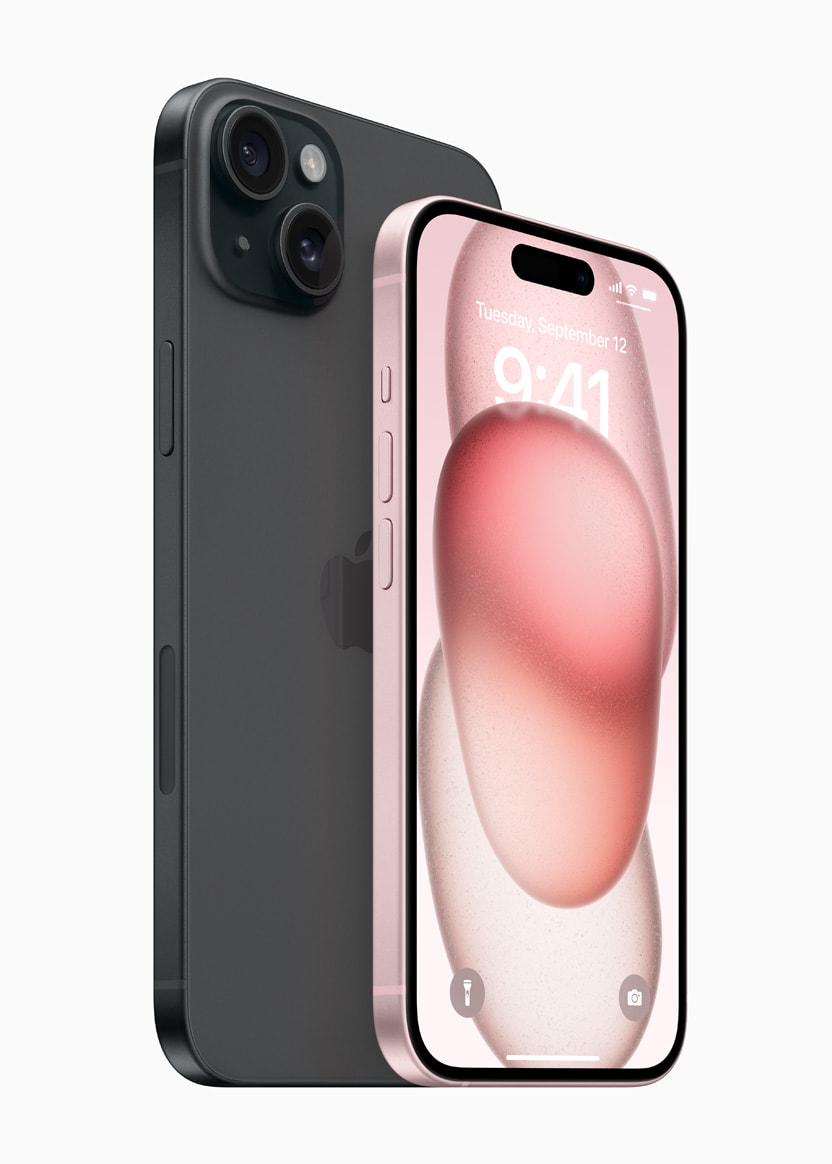
iPhone 15 Review - Unveiling Impressive New Features

iPhone 15 Review - Unveiling Impressive New Features

Introduction:

The iPhone 15 stands tall as Apple's latest flagship smartphone, surpassing its rivals with a host of new features. With its stunning display, incredible performance, versatile camera system, and exceptional battery life, this device has raised the bar for smartphones in the market.


Pros:

  1. Breathtaking Super Retina XDR Display with ProMotion Technology
  2. Uncompromising Power of the A16 Bionic Chipset
  3. Versatility at Its Best with a 48MP Main Sensor Camera
  4. Extended Battery Life for Uninterrupted Usage
  5. Enhanced Durability through Aerospace-Grade Aluminum Enclosure and Ceramic Shield Glass
  6. Rapid Charging Capabilities
  7. Harness the Power of 5G Connectivity

Cons:

  1. Premium Price Point
  2. Slightly Hefty and Bulky Design
  3. Retention of Notch at the Top of the Display

Noteworthy Features:

  1. Immersive 6.1-inch Super Retina XDR OLED Display with ProMotion
    • Boasts a resolution of 2532 x 1170 pixels for unsurpassed visual clarity
    • Enjoy fluid visuals with ProMotion's refresh rates of up to 120Hz
  2. Remarkable A16 Bionic Chip with 64-bit Neural Engine
    • Unleashes unparalleled performance and efficiency
  3. Generous Memory of 6GB RAM
    • Seamlessly multitask and run demanding applications with ease
  4. Ample Storage Options: 128GB, 256GB, 512GB, or 1TB
    • Never worry about running out of space for your precious memories and files
  5. Cutting-Edge Triple-Lens Rear Camera System
    • Equipped with a 48MP wide-angle lens, a 12MP ultrawide lens, and a 12MP telephoto lens
    • Capture stunning photos and videos with professional-grade clarity and detail
  6. Impressive 12MP Front-Facing Camera
    • Perfect for capturing the best selfies and engaging in high-quality video calls
  7. Swift and Reliable Face ID Facial Recognition
    • Keep your device secure with the convenience of facial authentication
  8. Waterproof Design
    • Submerge the iPhone 15 up to 6 meters for 30 minutes without worry
  9. Embrace the Freedom of Wireless Charging
    • No need for cables, simply place the device on a compatible charging pad
  10. Swift Charging Support
    • Get back to full power in no time with fast charging capabilities
  11. Unleash the Speed of 5G Connectivity
    • Experience lightning-fast internet speeds for seamless browsing, streaming, and downloading

Comparing Cutting-Edge Technologies:

When compared to other technologically advanced smartphones like the Samsung Galaxy S23 Ultra, Google Pixel 7 Pro, and OnePlus 11 Pro, the iPhone 15 excels in several areas. While all these phones offer similar features such as high-resolution displays, powerful processors, and advanced camera systems, the iPhone 15 sets itself apart with its exceptional battery life, robust build quality, and smooth software experience.

Overall Impression:

The iPhone 15 is an outstanding smartphone that delivers on all fronts as a flagship device. Its captivating display, exceptional performance, long-lasting battery, and versatile camera system ensure an unparalleled user experience. However, it's worth noting that the device comes with a premium price tag and carries some weight. If you seek the pinnacle of iPhone excellence and are willing to invest, the iPhone 15 is the ultimate choice for you.

Recommendation:

For those in pursuit of unparalleled performance, camera quality, and battery life, I wholeheartedly recommend the iPhone 15. However, it's important to consider the device's price and weight. If you are on a tighter budget or prefer a lighter device, alternatives like the iPhone 14 or iPhone SE (2022) may be worth exploring.

Friday, 18 August 2023

Boost Your Mobile Network Connectivity with These 7 Simple Tricks

Optimizing Mobile Network Connectivity: Smart Solutions for Weak or Unstable Connections

Introduction:

In the era of constant connectivity, weak or unstable mobile network connections can be frustrating and hinder productivity. However, before tearing your hair out in despair, try implementing some simple solutions that can greatly enhance your mobile network connectivity. In this blog post, we will discuss several effective methods, including checking settings, switching to airplane mode, and utilizing Wi-Fi calling.
Poor mobile network


1. Double-Check Network Settings:

The first step towards optimizing your mobile network connectivity is to ensure that your network settings are correctly configured. Start by verifying if you are connected to the right mobile network. Sometimes, your device may be set to automatically connect to the wrong network, hampering your signal strength. Additionally, confirming that your data roaming settings are appropriately enabled can be crucial in certain situations where you are outside your home network.

2. Perform Regular Device Maintenance:

Similar to a computer, your smartphone or tablet benefits from regular maintenance. Clearing your device's cache and deleting unnecessary apps or files can improve network performance. Outdated software can also negatively impact connectivity, so always keep your operating system up to date to ensure optimal network performance.

3. Switch to Airplane Mode:

If your mobile network connection appears weak or unstable, a quick fix is to switch your device to airplane mode for a few seconds. This temporary disconnection from the network prompts your device to actively seek a stronger connection when you switch airplane mode off again. This simple trick can often result in a more stable and improved signal.

4. Utilize Wi-Fi Calling:

When circumstances allow, utilizing Wi-Fi calling can be a game-changer. Wi-Fi calling uses your internet connection rather than relying solely on mobile network coverage. This can be especially beneficial in areas with weak cellular signals, where your device can use a nearby Wi-Fi network to make calls or send text messages seamlessly. Enabling Wi-Fi calling is usually found in your device settings or phone app preferences.

5. Trip to the Roof: Get Closer to the Signal!

Sometimes, you only need a slight change in your location to dramatically improve your mobile network experience. If you're inside a building or surrounded by objects that may interfere with the signal, try moving closer to a window or even going up to a higher floor. Better signal reception might be just a few steps away.

Conclusion:

Weak or unstable mobile network connectivity can be frustrating, but many remedies are within your reach. By following the aforementioned solutions, including double-checking settings, enabling airplane mode, and utilizing Wi-Fi calling, you can drastically enhance your mobile network connectivity. Remember to regularly maintain your device and periodically update your software. With these simple tweaks, you can ensure a smooth and reliable mobile network experience, anytime and anywhere.

IF YOU LIKED THE POST , DON'T FORGET TO SHARE AND COMMENT BELOW

Thursday, 17 August 2023

7 Simple Hacks to Keep Your Phone Cool

Keeping Your Phone Cool: Effective Solutions for Overheating Issues

Introduction:

In this fast-paced digital age, where our smartphones play a crucial role in our daily lives, dealing with overheating problems can be an alarming and frustrating experience. Excessive heat not only affects our device's performance but also poses potential risks to its longevity. However, by following some simple preventative measures and employing practical solutions, we can effectively address overheating issues and maximize the lifespan of our beloved smartphones. Let's delve into some valuable guidance to prevent and resolve the problem of overheating in mobile phones.

Heating of mobilephone


1. Avoid Resource-Intensive Tasks:

One of the primary causes of overheating in smartphones is engaging in resource-intensive tasks. Extensive gaming, video streaming, and running multiple apps simultaneously can push your device to its limits, thereby generating excess heat. To prevent overheating, limit the duration or frequency of such activities and give your phone adequate breaks to cool down. Avoid running unnecessary background applications and quit apps that are not in use to ease the burden on your device's processor

2. Optimize App Usage:

Certain applications often contribute to overheating, primarily due to poorly optimized code or high power consumption. Keep a close eye on which applications cause your phone to heat up excessively. For such apps, you may consider alternatives or uninstall them altogether. Additionally, ensure your apps are up to date, as developers frequently release updates that address optimization issues and fix bugs related to overheating.

3. Utilize Cooling Accessories:

Cooling accessories can be a lifesaver for mobile phones suffering from persistent overheating problems. Consider investing in a variety of cooling gadgets available in the market, such as phone cooling pads or fans. These accessories help to dissipate excess heat from the phone's internal components, ensuring a stable operating temperature. Always opt for reliable, reputable brands, and be cautious of cheaper alternatives that may not deliver desired results or might further damage your device.

4. Moderate Environmental Factors:

Environmental conditions play a substantial role in the overheating of mobile phones. Exposure to direct sunlight, especially during hot summer days, can skyrocket your phone's temperature. Protect your device by avoiding leaving it in direct sunlight for extended periods. Additionally, excessively warm and humid areas, such as saunas or steam rooms, should be avoided when using your phone, as they can compound overheating issues.

5. Optimal Charging Habits:

Improper charging practices can also contribute to overheating problems. Charging your phone with incompatible or counterfeit chargers can generate excessive heat and potentially harm your device. Stick to manufacturer-recommended chargers and cables, and avoid charging your phone on soft surfaces that block heat dissipation. Additionally, allowing your phone's battery to drain completely or charging it while in use should be avoided, as these actions can generate significant heat.

Conclusion:

Dealing with overheating issues in mobile phones may seem like a daunting task, but with the right precautions and solutions, you can keep your device running smoothly and extend its lifespan. By limiting resource-intensive tasks, optimizing app usage, utilizing cooling accessories, moderating environmental factors, and adopting optimal charging habits, you can effectively prevent and address overheating problems. Remember, taking care of your phone today ensures its longevity and performance tomorrow.

IF YOU LIKED THE POST , DON'T FORGET TO SHARE AND COMMENT BELOW

Wednesday, 16 August 2023

Running Out of Phone Storage? Here's How to Fix It!

Are you finding it increasingly difficult to take photos, download new apps, or even update your phone's software due to lack of storage space? You're not alone. As our phones continue to become the go-to device for capturing memories and holding important information, running out of storage can quickly become a frustrating experience. Luckily, there are several simple steps you can take to clear up valuable space on your phone. In this article, we will explore three effective methods to help you regain storage capacity and optimize your device's performance.
Running Out of Phone Storage? Here's How to Fix It


1. Deleting Unnecessary Files: 

The first and most straightforward step to free up space on your phone is to identify and remove any unnecessary files cluttering your device. Start by examining your photo gallery. We often accumulate countless photos and videos, many of which are duplicates or of little significance. Go through your collection and delete those that are no longer needed or can be easily backed up. Similarly, dive into your downloads folder and delete any old files or documents that you no longer require. Not only will this clear space on your device, but it will also make finding important files much easier.

2. Clearing Cache: 

The cache is a repository of temporary files stored by apps on your phone for quick access. While cache files can improve loading times and enhance the user experience, they can accumulate over time and consume a significant amount of storage space. Clearing your cache regularly can help free up valuable memory. To do so, head to your phone's settings and navigate to the storage section. From there, you can find an option to clear cache or app data. You may choose to clear cache for individual apps or clear it all at once. This process will not delete any of your app data or settings; it will simply remove temporary files.

3. Transferring Files to the Cloud or External Storage:

If you've deleted unnecessary files and cleared your cache, but you're still running low on space, it's time to consider transferring some of your files to the cloud or external storage. Cloud-based storage services like Google Drive, Dropbox, or iCloud offer free storage options and allow you to upload your photos, videos, and documents to their servers. Once safely stored in the cloud, these files can be easily accessed from any device with an internet connection. Additionally, using external storage options such as microSD cards or portable hard drives can provide extra space for large files without relying on an internet connection. By offloading some of your files to external storage or the cloud, you can ensure that your phone's internal memory is freed up for more essential tasks.

In conclusion, a cluttered phone with limited storage can hinder its performance and prevent you from enjoying the full range of features available. By following these straightforward steps, you can free up space on your device effectively and improve its overall performance. Start by deleting unnecessary files, then clear cache to remove temporary data, and consider transferring files to the cloud or external storage options. With a bit of regular maintenance and a conscious effort to keep your phone clutter-free, you'll be able to enjoy a seamless user experience and make the most of your device's capabilities.

IF YOU LIKED THE POST , DON'T FORGET TO SHARE AND COMMENT BELOW

Tuesday, 8 August 2023

Bricks to Powerhouses: Journey of Smartphones!

From 'Bricks' to Pocket Powerhouses: The Evolution of Smartphones!


Smartphones have become an integral part of our lives, seamlessly blending communication, information, and entertainment into a pocket-sized device. However, the journey to reach this level of technological prowess was not an overnight success. Let's take a trip down memory lane and explore the evolution of smartphones, from 'bricks' to pocket powerhouses.

Mobile phones evolution


In the early 1990s, mobile phones were hulking devices known as 'bricks.' These early mobile phones were primarily used for making calls and were bulky, heavy, and expensive. The advent of digital technology in the late '90s paved the way for the development of smaller and more portable devices.

The first major milestone in smartphone history came with the introduction of Nokia's iconic 9000 Communicator in 1996. It was hailed as the first true smartphone, combining the functionality of a mobile phone with a QWERTY keyboard and a basic web browser. Though not as advanced as contemporary smartphones, it revolutionized the industry by offering enhanced features and access to basic internet services.

Fast forward to the early 2000s, and we witnessed the emergence of the PDA (Personal Digital Assistant) phones. These devices, like the Palm Treo and Blackberry's early models, aimed at providing email and productivity features on-the-go. They featured physical keyboards, touchscreens, and stylus-based input systems.

In 2007, Apple's iPhone brought about a significant paradigm shift in the smartphone landscape. It introduced a stunning multi-touch display, a mobile web browser, and an app ecosystem that transformed the way we interacted with our phones. The iPhone set the benchmark for smartphones to come, sparking intense competition among manufacturers to create more powerful and feature-rich devices.

With the rise of Android in 2008, smartphones quickly became more accessible and customizable. Android devices offered a range of screen sizes, styles, and price points to suit different user preferences. This era also witnessed significant advancements in camera technology, allowing users to capture high-resolution photos and videos. Social media integration became a standard feature, enabling users to share their moments instantly.

As smartphones evolved, their processing power increased, enabling them to handle complex tasks and run resource-intensive applications. In recent years, smartphones have become extraordinarily powerful, featuring octa-core processors, high-resolution OLED displays, and ample storage capacities. They have become our go-to devices for not only communication but also gaming, photography, video streaming, and even augmented reality experiences.

Moreover, the integration of artificial intelligence and machine learning has taken smartphones to new heights. From voice assistants like Siri and Google Assistant to facial recognition technology and personalized app recommendations, smartphones have become incredibly intelligent, adapting to our needs and making our lives more seamless.

Looking ahead, the future of smartphones promises even more mind-boggling developments. Foldable phones are set to become mainstream, bending the line between smartphones and tablet devices. 5G networks will offer lightning-fast internet speeds and unlock new possibilities for augmented and virtual reality experiences. And who knows what other innovations await us in the palm of our hands?

In just a few decades, smartphones have come a long way, transforming from hefty bricks to sleek, pocket-sized powerhouses. They have revolutionized the way we communicate, work, learn, and entertain ourselves. As technology continues to advance, it's fascinating to imagine what the next chapter in smartphone evolution holds—for the possibilities seem truly endless.

IF YOU LIKED THE POST , DON'T FORGET TO SHARE AND COMMENT BELOW

Saturday, 5 August 2023

How to Improve Smartphone Battery Life: A Comprehensive Guide

In today's fast-paced and digitally-driven world, smartphones have become an essential part of our lives. From communication to entertainment, these devices have revolutionized the way we interact with the world. However, one common issue that smartphone users face is the limited battery life. In this article, we will explore various strategies and tips to help you improve your smartphone's battery life.

How to Improve Smartphone Battery Life: A Comprehensive Guide


1. Adjust Screen Brightness:


One of the primary factors that drain your smartphone's battery is the screen brightness. By reducing the screen brightness to an optimal level, you can significantly extend your device's battery life. Most smartphones have an auto-brightness feature that adjusts the screen brightness based on ambient light conditions. Enabling this feature can help conserve battery power.

2. Manage App Notifications:


App notifications can be both helpful and draining for your smartphone's battery life. It is essential to review and manage the notifications you receive regularly. Disable unnecessary notifications from apps that you don't use frequently. This simple step can have a significant impact on your device's battery life.

3. Limit Background App Refresh:


Many apps continue to run in the background, even when you are not actively using them. These background processes consume valuable battery power. To improve your smartphone's battery life, go to your device's settings and disable background app refresh for apps that you don't need to update in the background. This way, you can have better control over which apps are allowed to refresh in the background.

4. Enable Power-Saving Mode:


Most smartphones come with a built-in power-saving mode that helps conserve battery life. When enabled, this mode restricts certain features and reduces performance to extend battery life. Activate power-saving mode when your battery is running low or during extended periods of non-usage to maximize battery efficiency.

5. Manage Location Services:


Location-based apps and services constantly track your device's location, which can drain your battery quickly. Review the apps that have access to your device's location and disable location services for apps that don't require it. This step can significantly improve your smartphone's battery life.

6. Optimize App Usage:


Some apps are notorious for consuming excessive battery power. Identify and uninstall apps that are known to be battery hogs. Additionally, check for app updates regularly, as developers often release updates that optimize battery usage. By keeping your apps up to date, you can ensure they are running efficiently and not draining unnecessary battery power.

7. Reduce Push Email Frequency:


If you use your smartphone for email, consider reducing the frequency at which your device checks for new emails. Constantly syncing your email accounts can drain your battery quickly. Adjust the settings to fetch emails manually or at longer intervals to conserve battery power.

8. Disable Unnecessary Connectivity Features:


Bluetooth, Wi-Fi, and NFC are all connectivity features that can drain your smartphone's battery. Turn off these features when you are not using them to extend battery life. Additionally, avoid keeping your device connected to a Wi-Fi network when you are out of range, as it can continuously search for a connection and consume battery power.

9. Keep Your Device Cool:


Excessive heat can have a detrimental effect on your smartphone's battery life. Avoid exposing your device to direct sunlight or extreme temperatures. Additionally, remove any protective cases or covers while charging your device, as they can trap heat and affect battery performance.

10. Invest in a Power Bank or Portable Charger:


Lastly, if you find yourself frequently running out of battery power, consider investing in a power bank or portable charger. These devices allow you to charge your smartphone on the go, ensuring that you never run out of battery when you need it the most.

Conclusion:


Improving your smartphone's battery life is a matter of adopting simple habits and making conscious choices. By implementing the strategies mentioned in this article, you can extend your device's battery life and enjoy uninterrupted usage throughout the day. Remember, a little effort can go a long way in maximizing your smartphone's battery efficiency. So, go ahead and start implementing these tips today!


IF YOU LIKED THE POST , DON'T FORGET TO SHARE AND COMMENT BELOW

Wednesday, 16 December 2020

BEST MOBILE APP TO CHECK ELECTION RESULTS IN KERALA

ഇലക്ഷൻ റിസൾട്ട് ഏറ്റവും വേഗത്തിൽ അറിയാൻ ഒരു ഗവർണമെന്റ് ആപ്പ്. Best app to check election result. You can use it to check results of Kerala election results.

https://play.google.com/store/apps/details?id=in.gov.kerala.prd


The Kerala State Election Commission will begin counting of votes today at 8 am for 21,893 wards in 1,200 local bodies which went to polls in three phases.

Seen as a pointer to the upcoming Assembly elections, the local body polls have generated a lot of interest both in Kerala as well as outside the state.

തദ്ദേശ തെരഞ്ഞെടുപ്പിന്റെ ഫലം അറിയാൻ ഇനി മണിക്കൂറുകൾ. ബുധനാഴ്ച രാവിലെ എട്ട് മണിക്കാണ് വോട്ടെണ്ണൽ ആരംഭിക്കുക, ആദ്യഫല സൂചനകൾ എട്ടരയോടെ അറിയാൻ കഴിയും. മുഴുവൻ ഫലവും ഉച്ചയോടെ അറിയുമെന്ന് സംസ്ഥാന തെരഞ്ഞെടുപ്പ് കമ്മീഷൻ അറിയിച്ചു. 244 വോട്ടെണ്ണൽ കേന്ദ്രങ്ങളാണുള്ളത്. തപാൽ വോട്ടുകൾ ആദ്യം എണ്ണും. കോവിഡ് പ്രോട്ടോക്കോൾ പാലിച്ചാകും വോട്ടെണ്ണൽ.

IF YOU LIKED THE POST , DON'T FORGET TO SHARE AND  BELOW

Saturday, 24 August 2019

Android 10 Q New features

New features on Android 10 or Android Q


On Thursday Google announced the name of their next Android version. There was many rumor about its name, which people called affectionately android Q. Now the question in everyone's mind is which phones will get the latest android 10 or android q update and when will start getting. I am using xiaomi redmi note 5 pro with android 9. Hope it will get latest android 10 update.

No its not Android Q, It is now officially Android 10. Android 10 new comes with a new logo and new font, and several upgrades, tweaks and new features that come along with it.

New features of Android 10 or Android Q

There are many features and upgrades in android 10, latest version of android. Some security updates, privacy updates and some cool features to improve user experience. Some audio features are also there to improve use experience.


Dark mode

Android 10 new feature include an option to change your phone’s theme to ‘Dark’, both in the system’s UI and the apps. The dark mode also increases phone’s battery life, as it requires significantly less power.

QR Code for WiFi

You can use QR code password to connect to WiFi.
say bye to old password. It is called ‘Easy Connect’. You can use it intead of password.

Audio features

Android 10 lets two apps on your phone record or listen to audio at the same time. “Before Android Q the input audio stream could only be captured by one app at a time,” Google writes in their developers’ forum. "Once an app started to capture audio, all other apps had no way to access the audio input until the capturing app stopped.”

But now, you might be able to get two applications listen to audio input at the same time. For instance, you could, depending on privacy settings and permissions, use the voice recorder app while also speaking to Google assistant.

In addition, the upgrade also has something called the AudioPlaybackCapture API (Application Programming Interface), which lets you capture audio from another app that is playing. This used to be a feature restricted to video, but now there is an audio option as well.

For example, if you’re on Chrome and there’s no connectivity, Chrome will automatically open the Connectivity settings panel on your page, instead of you having to juggle the Chrome and the Settings app to get what you want.

Location permissions

Android 10 has new permissions access that “gives users more control over app access to device location”, according to Google. You can tweak location permissions in such a way that an app can access your location only when the app is being used. That is, the app cannot access it when it is running in background.

Bubbles

Is is notifications ‘bubbles’ that will now pop up on your screen, even when you are using other applications, designed for multitasking, also the feature can be turned off if you don’t like it.

Thermal API

The Thermal API heps apps to
know the state of the chipsets and processors in the phone. If the apps detect that the phone has warmed up, they can make changes to how they function in order to bring the temperature down and restore optimum performance. “When the device reports thermal stress, apps and games can help by backing off ongoing activities to reduce power usage on various ways,” Google says.

Settings Panels

Accessing settings made easy in new android Q or android 10 update. Settings Panels lets you access phone settings that are contextual to the app that you currently have open.

Privacy
There are many updates to protect privacy of users in latest android 10 update. One important update is that apps cannot launch by themselves. Now applications need a user’s permission to launch, previously it wasn't needed.

Security
There are some security updates in latest android 10 or android Q. Android 10 restricts apps from accessing the contents of the phone’s screen. Any apps that need to access the phone screen will now need additional, on-the-go permission. Now that is a good security feature.

Foldable devices
Android 10 offers support for application developers to develop apps specifically for such devices, even with different folding patterns. The support addresses issues of the app resizing, screen ratios, multi window functions, display cutouts and more. Several foldable phones available now in the market likeSamsung’s Galaxy Fold, Huawei’s Mate X etc.


#android10version

#android10update
IF YOU LIKED THE POST , DON'T FORGET TO SHARE AND COMMENT BELOW

Tuesday, 20 August 2019

Official MIUI 10.3.2.0 Global Stable ROM update released for Redmi Note 5 Pro [V10.3.2.0.PEIMIXM]

Xiaimi released latest MIUI 10.3.2.0 Global Stable ROM update for its redmi note 5 pro users.

Xiaomi Redmi Note 5 (Xiaomi Redmi Note 5 Pro in India) is a smartphone developed by Xiaomi. It is one of the phone is Xiaomi's budget Redmi Note smartphone line.

Redmi Note 5 was announced on 14 February 2018 in Delhi, India, alongside the local release of Redmi 5 Plus. Redmi note 5 pro is one of the most popular redmi phones in India from xiaomi.

Latest update for xiaomi redmi note 5 includes, 

System
Optimization: Lock screen pocket mode
Optimization: Updated Android Security Patch to August 2019. Increased system security.

App lock
New: Locking Google contacts is available now

Lockscreen, status bar, Notification shade
New: Introducing customizable Lock screen clock (Settings > Lock screen & password > Advanced settings). New Lock screen clock doesn’t work with third party themes.
Fix: Screen didn’t always light up for notifications
Fix: Media volume couldn’t be restored after receiving a notification

Settings
Optimization: Sorting principles for Wi-Fi networks

Game speed booster
Fix: Hands-free call duration wasn’t displayed correctly in Game Turbo


To update your redmi note 5 pro phone to lates OS,

  1. Go to the device Settings of your Redmi Note 5 Pro. 
  2. Click About Phone section then click on Software Update. If the update is available for your device then it will show now. 
  3.  Click download option. 
  4. Wait for the complete download Click install button to install the update completely. 
  5. Once the installation completes, Reboot your device. 
  6. It will take a few minutes and your device will boot into a new system.


 IF YOU LIKED THE POST , DON'T FORGET TO SHARE AND COMMENT BELOW